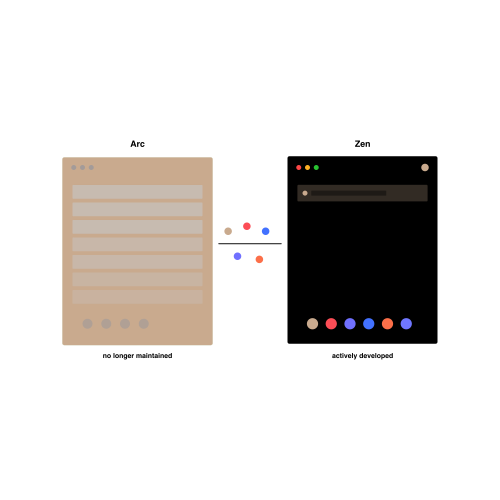
I have been an Arc user since it launch and I always loved it. The vertical sidebar, the Spaces, the split view — it just clicked for how I work. But since the team pivoted to Dia and got acquired by Atlassian, Arc has been in maintenance mode. No new features, just the occasional security patch, and you can feel the bit-rot setting in over time. It felt like there are more and more bugs and freezes.
So this weekend I finally pulled the plug and moved to Zen Browser. This is the messy, honest write-up of how it went — including the part where my Zen window turned into a grey rectangle, and I almost gave up.
Why Zen?
Short version: it is the closest thing to Arc that is actually being developed right now. Releases ship every two to four weeks, it is open source under MPL 2.0, and being built on Firefox means uBlock Origin still works the way it is supposed to (looking at you, Manifest V3).
I also briefly considered Vivaldi and Brave. Vivaldi has every feature under the sun, but it needs setup. Brave I already use on mobile, but its desktop version doesn’t fully replicate Spaces. So Zen it was.
The Plan
The migration came down to four buckets:
- Workspaces, pinned tabs, folder structure — the important stuff
- Browsing history — nice-to-have
- Extensions — manual, because Chromium → Firefox
- Passwords — already in 1Password, so nothing to do here
Step 1: Workspaces and Pinned Tabs with arc2zen
Zen has a built-in import wizard, but Arc is not in the list of supported browsers. The wizard will happily pull from Chrome, Edge, Safari — just not Arc.
The community filled that gap with arc2zen, a Python script that reads Arc’s StorableSidebar.json, maps Spaces to Zen Workspaces, and writes everything into zen-sessions.jsonlz4 — the modern session format Zen 1.18+ uses.
Setup is straightforward, but on a Homebrew-managed Mac you will hit PEP 668 immediately if you try to pip install globally. Use a venv:
git clone https://github.com/rafcabezas/arc2zencd arc2zenpython3 -m venv venv source venv/bin/activatepip install -r requirements.txt
Always run the dry-run first:
python3 migrate_arc_to_zen.py --dry-run
This shows you exactly what it would migrate without touching anything. For me it correctly found 7 Spaces, 155 pinned tabs, 39 folders, and even preserved space icons (🎆, 🌮, ⛺) and colors.
Important gotcha: Zen must be completely closed before you run the actual migration. Like, really closed. I learned this the hard way:
pkill -9 -f "zen"sleep 3ps aux | grep -i zen | grep -v grep
The last command must return nothing. If Zen is even partially running, it will overwrite the migrated session on startup and you end up with a grey window of nothing.
Step 2: The Grey Window Incident
First migration attempt: Zen opened to a completely blank grey window. No sidebar, no tabs, no UI. Just grey.
This is a known issue when the session file gets written while Zen has a stale .parentlock. The fix is to restore from the backup arc2zen creates automatically:
cd ~/Library/Application\ Support/zen/Profiles/clmo6ao7.Default\ \(release\)/mv zen-sessions.jsonlz4 zen-sessions.jsonlz4.brokencp zen-sessions.jsonlz4.backup.<timestamp> zen-sessions.jsonlz4
The timestamped backup files are gold here. Take note that arc2zen also creates a database backup under arc2zen/backups/, so you have a second safety net.
After making sure Zen was really, properly, definitely closed and re-running the migration, everything worked. Workspaces showed up with the right names, colors, icons, pinned tabs, folder hierarchy — all of it.
Step 3: Browsing History via a Chrome Detour
Zen’s import wizard does not have an Arc option, but Arc is Chromium-based under the hood. The trick: temporarily disguise the Arc profile as a Chrome profile.
# Close everything firstpkill -9 -f "zen"; pkill -9 -f "Google Chrome"; pkill -9 -f "Arc"# Copy the Arc profile into a Chrome profile slotcp -r ~/Library/Application\ Support/Arc/User\ Data/Default \ ~/Library/Application\ Support/Google/Chrome/Profile\ 2# Move your real Chrome Default aside and put the Arc clone in its placecd ~/Library/Application\ Support/Google/Chrome/mv Default Default.realmv "Profile 2" Default
Step 4: Extensions
This is where the Chromium → Firefox jump bites you. Extensions do not migrate. You install them again, from Firefox Add-ons this time.
Most popular ones are available with the same name and feature set, so it was an easy “Just install those”.
Settings need to be reconfigured manually. Annoying but a one-time cost.
What I Lost
Nothing important. The Arc-specific features (Easels, Boosts) do not exist in Zen. I did not really use them anyway. Open tabs were not migrated by default — I added the --open-tabs flag for a second run, but honestly half of those tabs were “I will read this later” promises I never kept. Good time to cull.
What I Gained
- A browser that actually gets updates
- uBlock Origin without Manifest V3 restrictions
- Split view that works
- No vendor risk — if the Zen team disappeared tomorrow, the community could fork it
Things I Wish I Knew Earlier
- Make a profile backup before any migration step. Just
cp -Rthe whole Zen profile to your Desktop. It saved me twice. - Zen does NOT need to be running for arc2zen. It actively breaks things if it is.
- The Chrome history trick works but is finicky. If you do not actually need your old history, skip it and keep Arc around as a read-only archive for a few weeks instead.
- Test in a venv on macOS. PEP 668 will block you otherwise.
Aftermath
Arc still works. I have not uninstalled it yet — it lives on as a read-only archive for the next few weeks in case I forgot to migrate something. The backup folders on my Desktop will follow shortly after.
If you are an Arc user on the fence: Zen gets you roughly 85% of the way there, and the missing 15% (Easels, the polish of Arc’s animations) is genuinely not worth staying on a browser that has stopped evolving. Two weeks in and I do not miss anything.

Leave a Reply